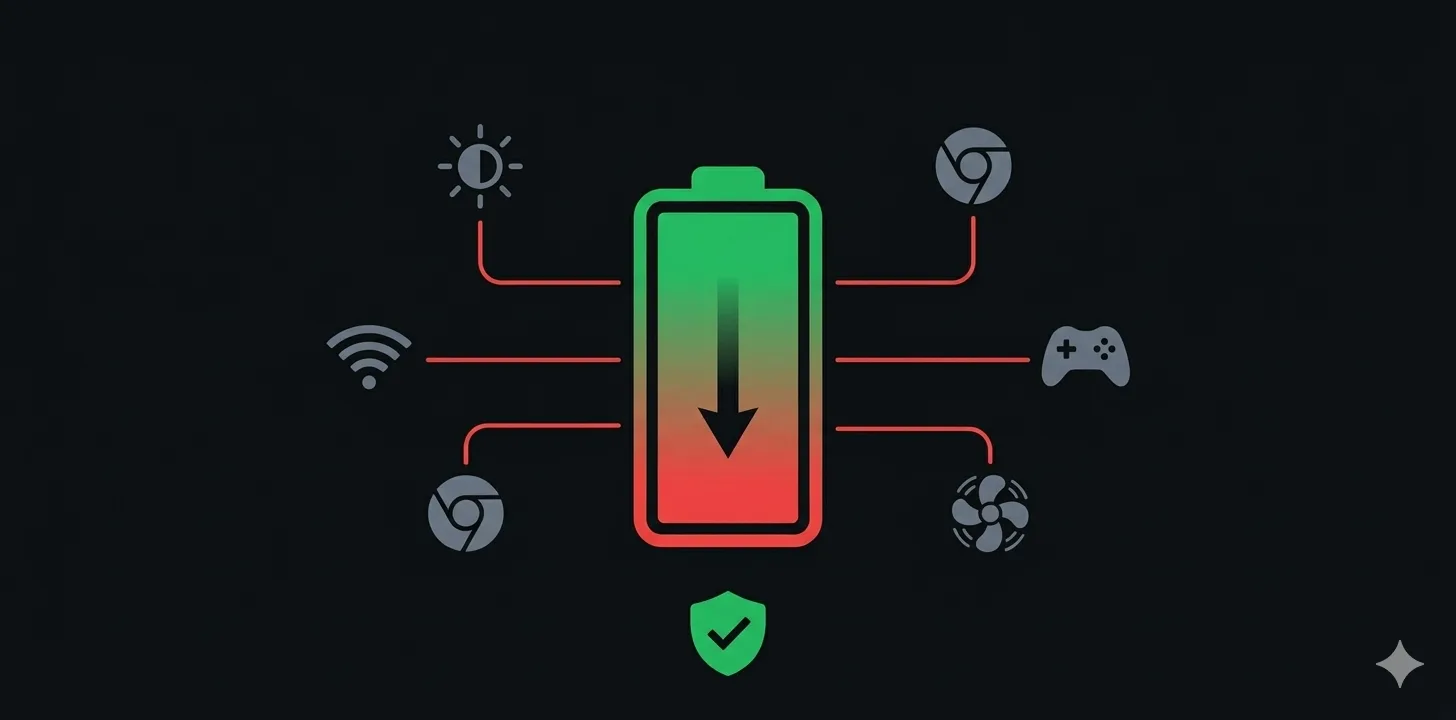
You charged to 100% an hour ago. You're already at 60%. Something is wrong — but what?
Battery drain is rarely one big problem. It's usually several small ones stacking up. Here are the real culprits, in order of impact.
1. A background app is eating power
This is the #1 cause. Chrome with 30 tabs. Slack. Spotify. Antivirus scanning. Teams running a background call. Each one seems small, but together they keep your CPU busy and your battery draining.
Fix: Open Task Manager (Windows) or Activity Monitor (Mac) and sort by energy impact. Kill anything you're not actively using.
Battery Notifier has a built-in battery drainer detection feature that identifies power-hungry apps and shows their estimated time impact — so you know exactly what's costing you.
2. Screen brightness is too high
According to Microsoft's battery care guide, your display is the single biggest power consumer on your laptop. At 100% brightness, it can cut battery life by 30-40% compared to 50%.
Fix: Drop brightness to the lowest comfortable level. Use auto-brightness if your laptop supports it.
3. Wi-Fi is searching for networks
When you're in a weak signal area, your Wi-Fi radio boosts power to maintain connection. This drains battery faster than a stable connection.
Fix: If you don't need internet, turn off Wi-Fi. If signal is weak, move closer to the router or switch to a wired connection.
4. Your battery is old
After 2-3 years of daily use, most laptop batteries retain only 70-80% of their original capacity. What felt like "8 hours" when new is now "5 hours" — and that's normal degradation, not a bug.
Fix: Check your battery health with powercfg /batteryreport on Windows or System Information on Mac. If capacity is below 60%, it's time for a replacement.
5. Power settings are wrong
Windows and macOS have power profiles that balance performance and battery life. If yours is set to "High Performance," the CPU runs at full speed even when idle.
Fix: Switch to "Balanced" or "Battery Saver" mode when on battery. On macOS, enable "Low Power Mode" in System Settings → Battery.
The quick checklist
- Check which apps are draining power (use Task Manager or Battery Notifier)
- Lower screen brightness to 50%
- Close browser tabs you're not using
- Switch to Balanced power mode
- Check battery health — if it's worn, the fix is replacement, not settings